Video and Image Search Examples
This document corresponds to the search and rapid model generation folder contained within a VIAME desktop installation. This directory contains methods to accomplish three tasks, all of which can be used to bootstrap annotation for training more accurate models:
Rapid model generation can be performed either via image or video queries using the IQR (Iterative Query Refinement) method described in the sections below, or via textual queries using the newer SAM3 add-on. The SAM3 add-on uses open-vocabulary text prompts to detect, segment, and track objects without requiring any pre-existing annotations or an ingested database. See the SAM3 Text-Prompted Detection and Tracking section below for more details on using SAM3.
Video and Image Archive Search
Video archive search can be performed via a few methods. The default includes a pipeline which generates object detections, tracks, and lastly temporal descriptors around each track. The descriptors get indexed into an arbitrary data store (typically a nearest neighbor index, locality-sensitive hashing table, or other). At query time, descriptors on a query image or video are matched against the entries in this database. A default GUI (provided via the VIVIA toolkit) is provided which allows performing iterative refinement of the results, by annotating which were correct or incorrect, in order to build up a better model for the input query. This model can be for a new object category (or sub-category attribute) and saved to an output file to be reused again in future pipelines or query requests. Input regions to query against can either be full frame descriptors, around just object detections, or, lastly, object tracks.
Initial Setup
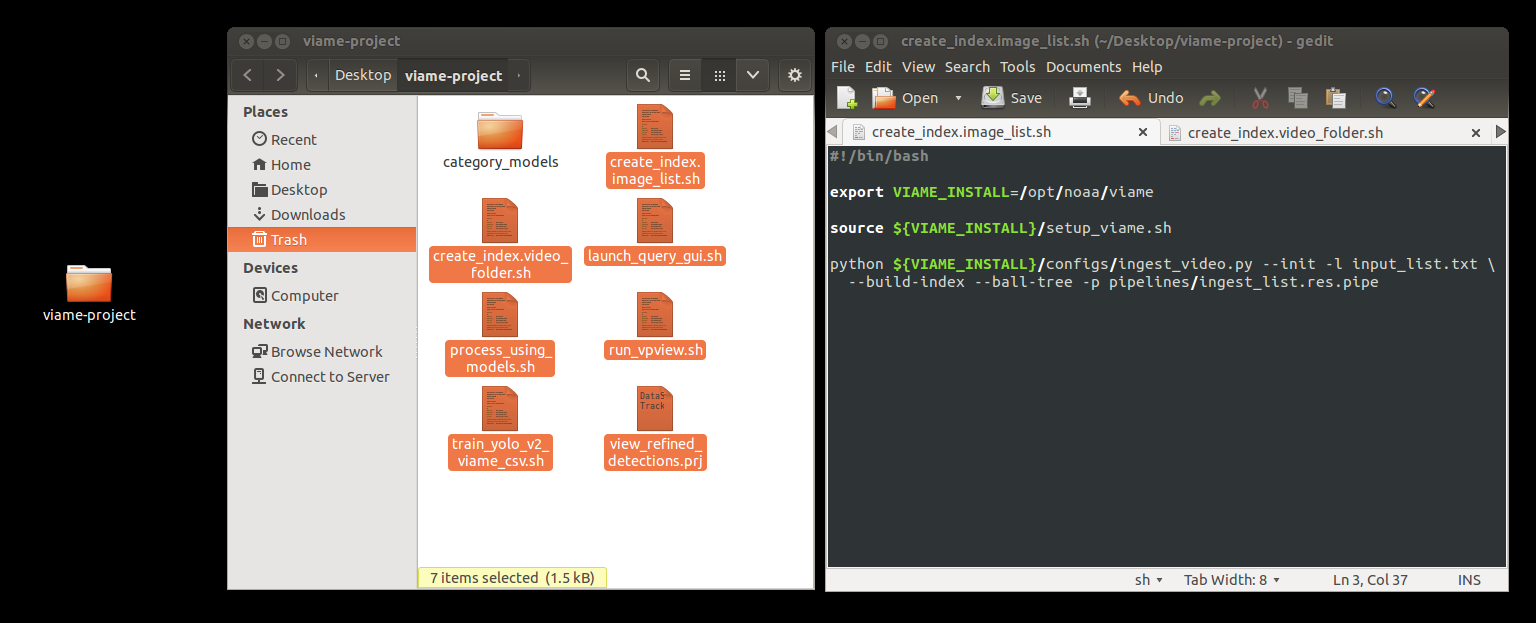
First, you should decide where you want to run this example from. Doing it in the example folder tree is fine as a first pass, but if it is something you plan on running a few times or on multiple datasets, you probably want to select a different place in your user space to store generated databases and model files. This can be accomplished by making a new folder in your directory and either copying the scripts (.sh, .bat) from this example into this new directory, or via copying the project files located in [VIAME-INSTALL]/configs/prj-linux (or prj-windows) to this new directory. After copying these scripts to the directory you want to run them from, you may need to make sure the first line in the top, “VIAME_INSTALL”, points to the location of your VIAME installation (as shown below) if your installation is in a non-default directory, or you copied the example files elsewhere. If using windows, all ‘.sh’ scripts in the below will be ‘.bat’ scripts that you should be able to just double-click to run.
Ingest Image or Video Data
First, create_index.[type].sh should be called to initialize a new database, and populate it with descriptors generated around generic objects to be queried upon. Here, [type] can either be ‘around_detections’, ‘detection_and_tracking’, or ‘full_frame_only’, depending on if you want to run matching on spatio-temporal object tracks, object detections, or full frames respectively (see VIAME quick start guide). If you want to run it on a custom selection of images, make a file list of images called ‘ingest_list.txt’ containing your images, one per line. For example, if you have a folder containing png images, run ‘ls [folder]/*.png > ingest_list.txt’ on the command line to make this list. Alternatively, if ingesting videos, make a directory called ‘videos’ which contains all of your .mpg, .avi, .etc videos. If you look in the ingest scripts, you can see links to these sources if you wish to change them. Next run the ingest script, as below.
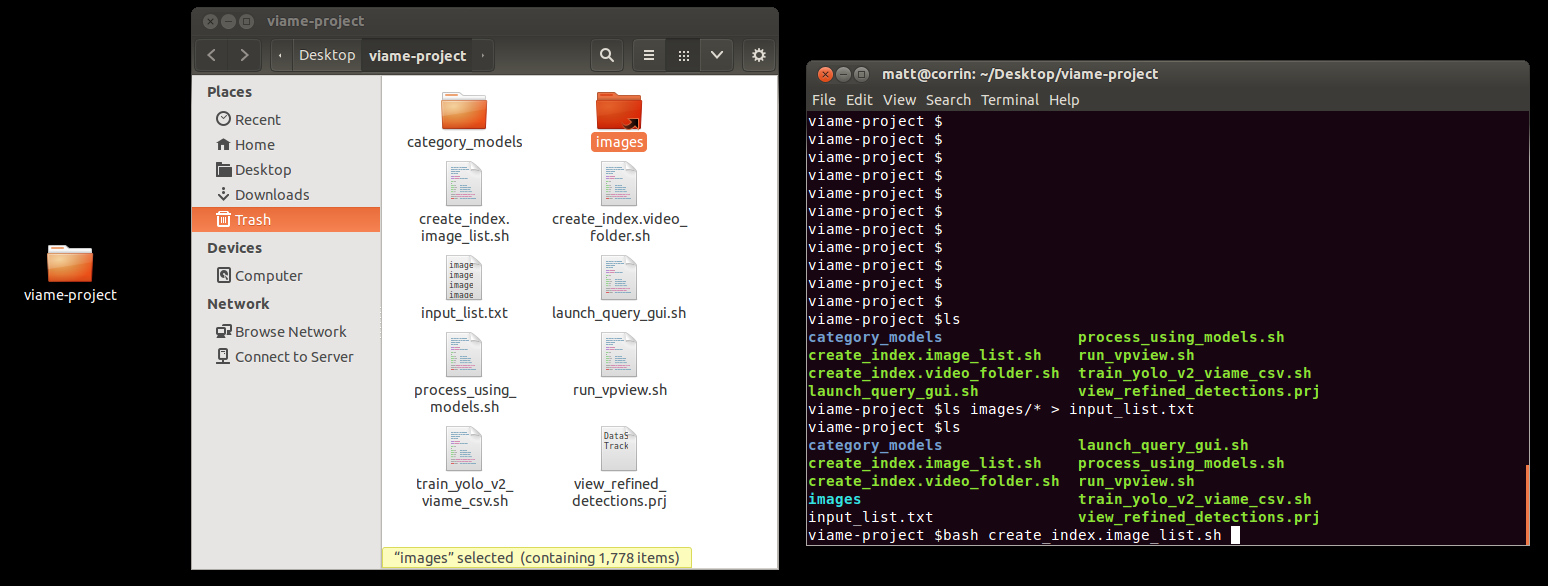
This should take a little bit if the process is successful, see below. If you already have a database present in your folder it will ask you if you want to remove it.
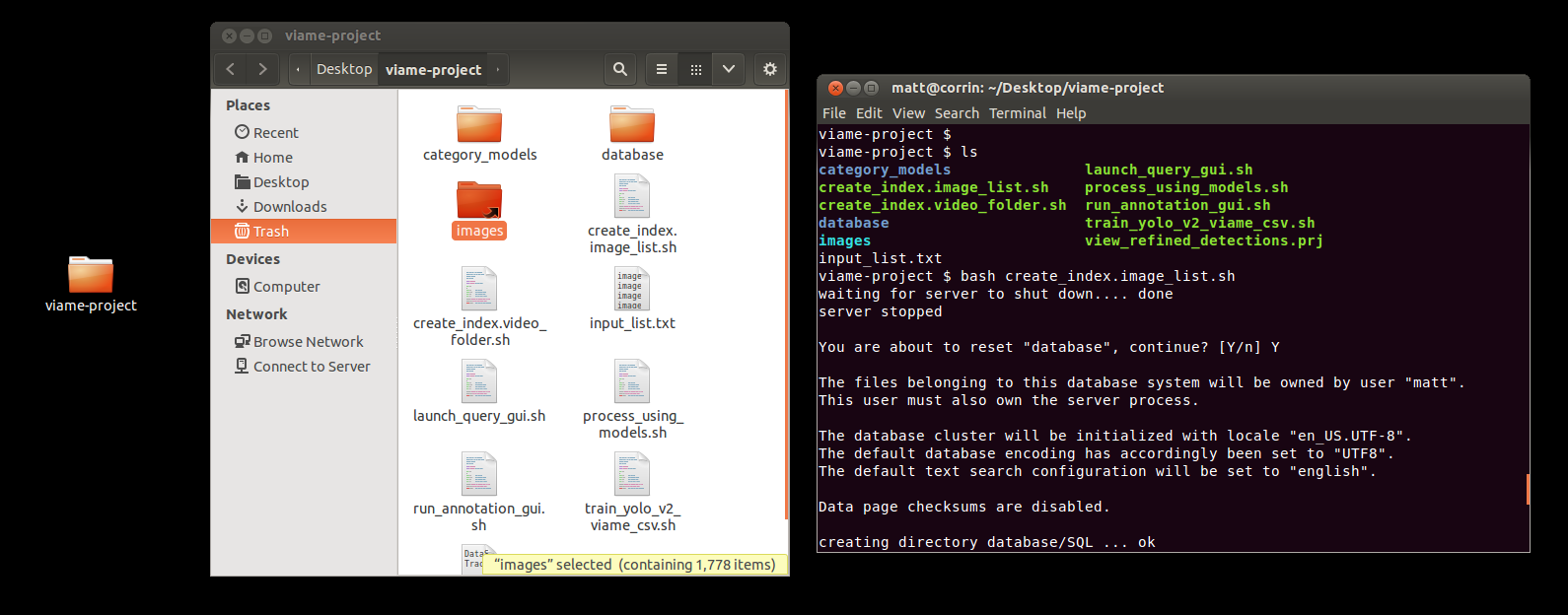
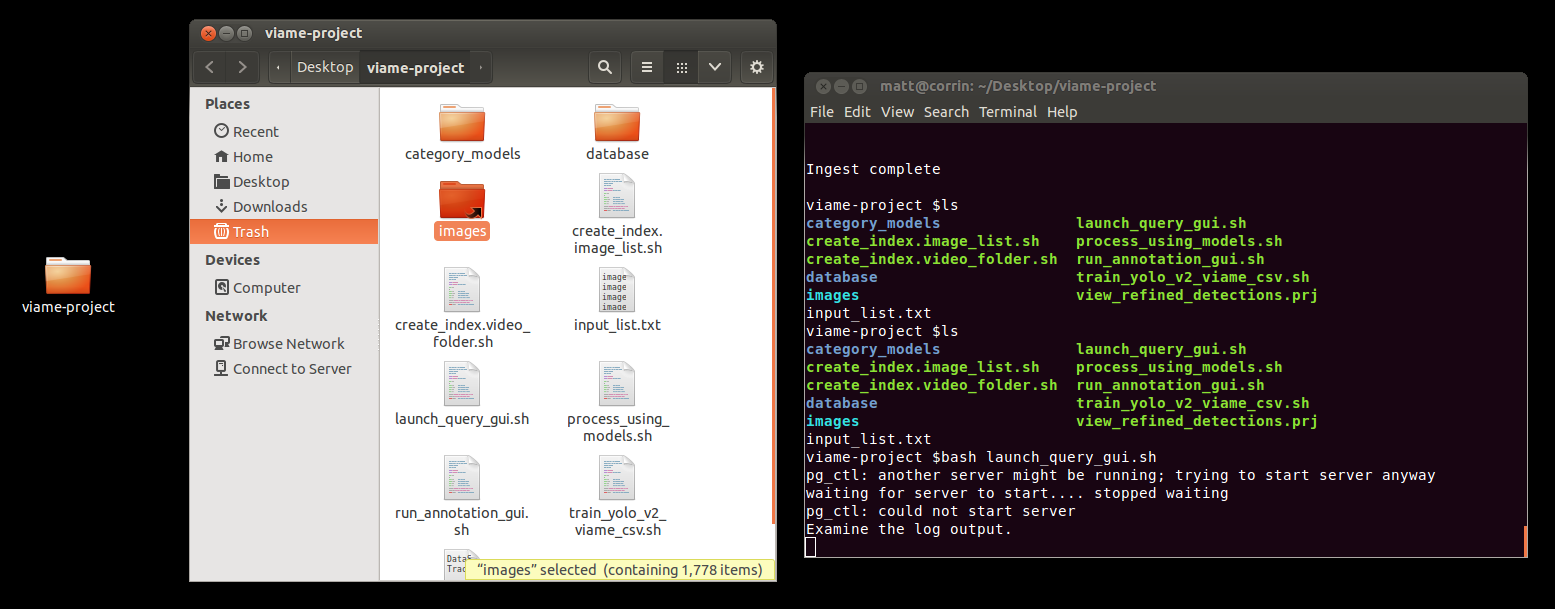
If your ingest was successful, you should get a message saying ‘ingest complete” with no errors in your output log. If you get an error, and are unable to decipher it, send a copy of your database/Logs folder and console output to ‘viame.developers@gmail.com’.
Perform an Image Query
After performing an ingest ‘bash launch_search_interface.sh’ should be called to launch the GUI.
Next select an image to use as an exemplar of what you are looking for. This image can take one of two forms, either a large image containing many objects including your object of interest, or a cropped out version of your object.
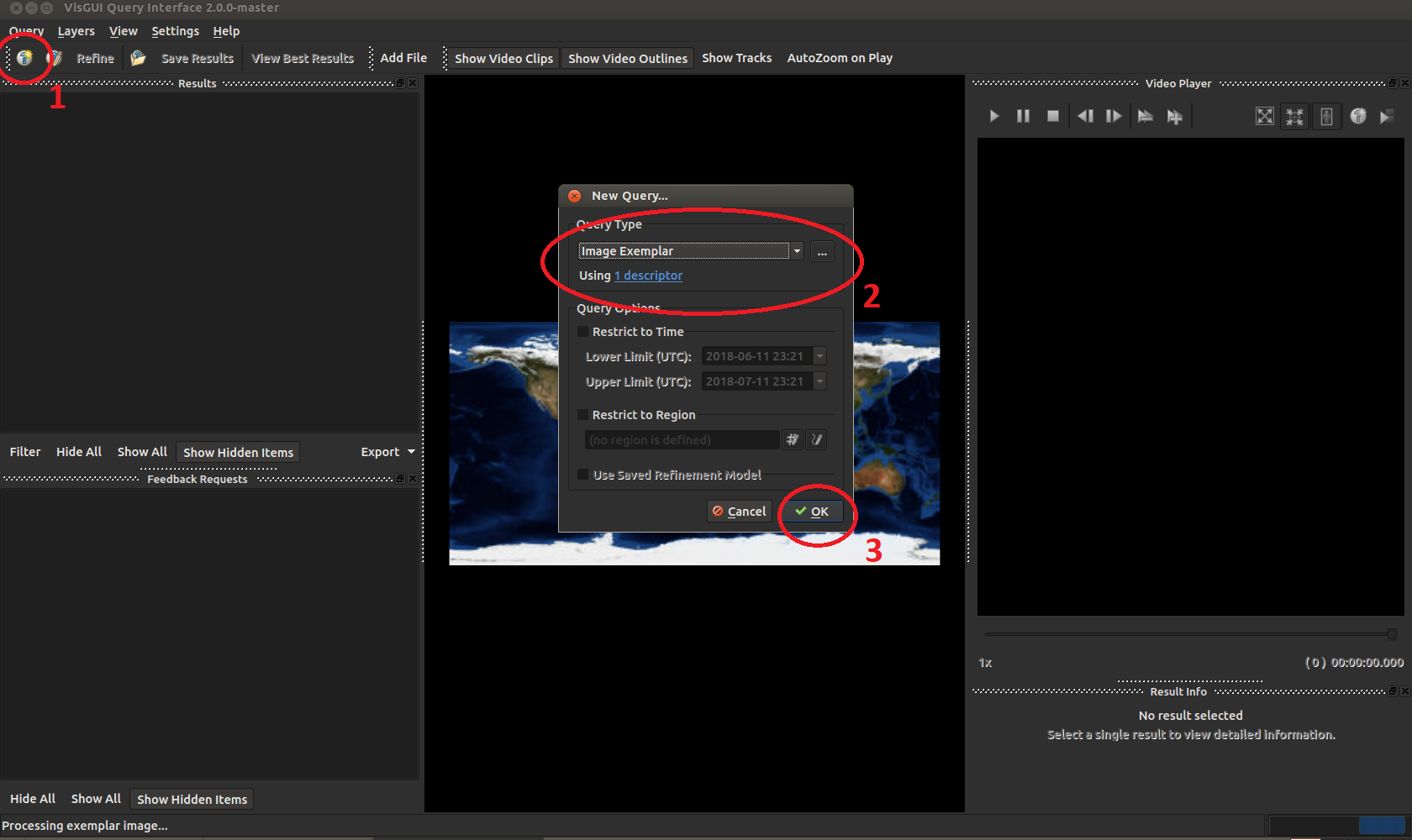
Whatever image you give, the system will generate a full-frame descriptor for your entire image alongside sub-detections on regions smaller than the full image.
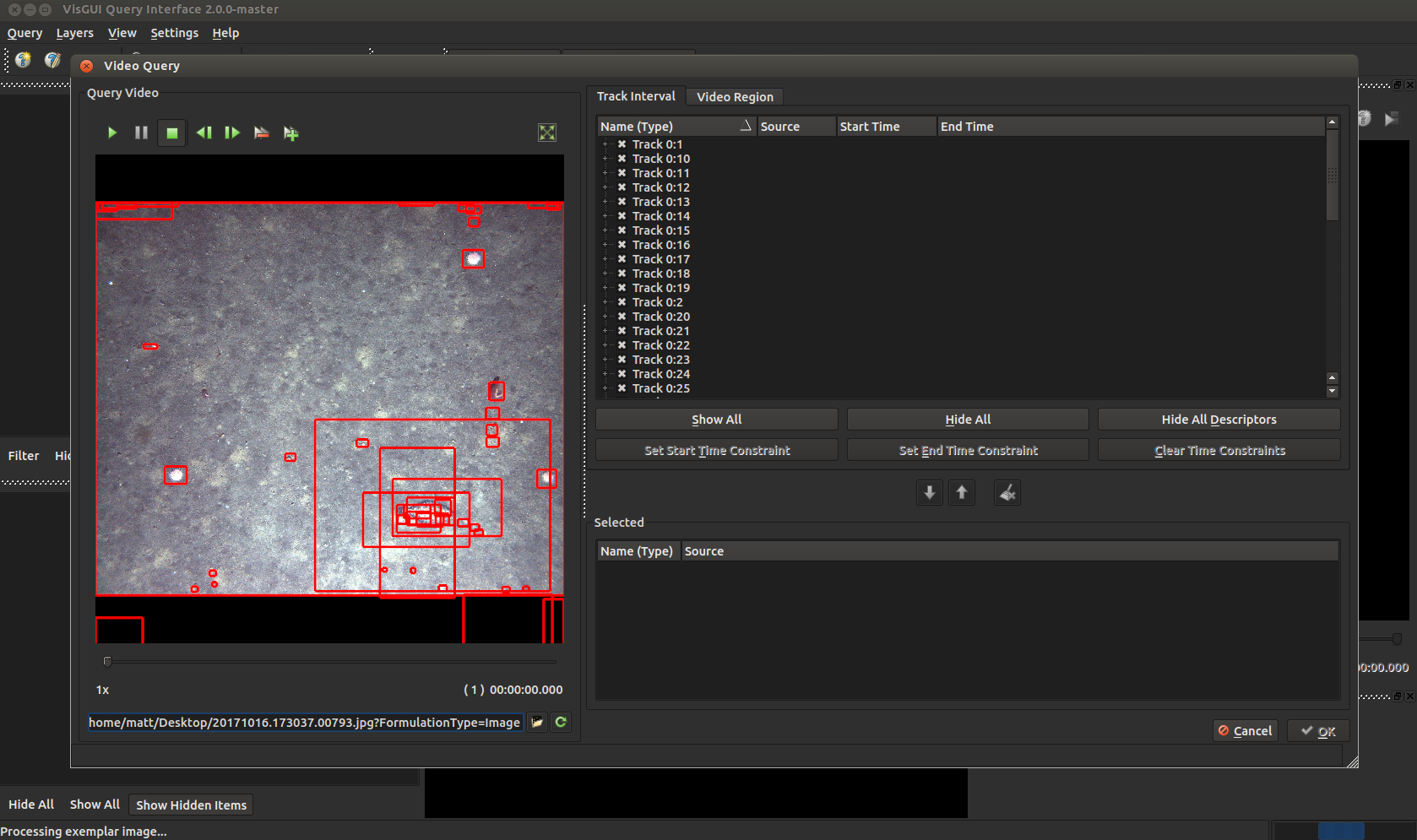
Select the box you are most interested in.
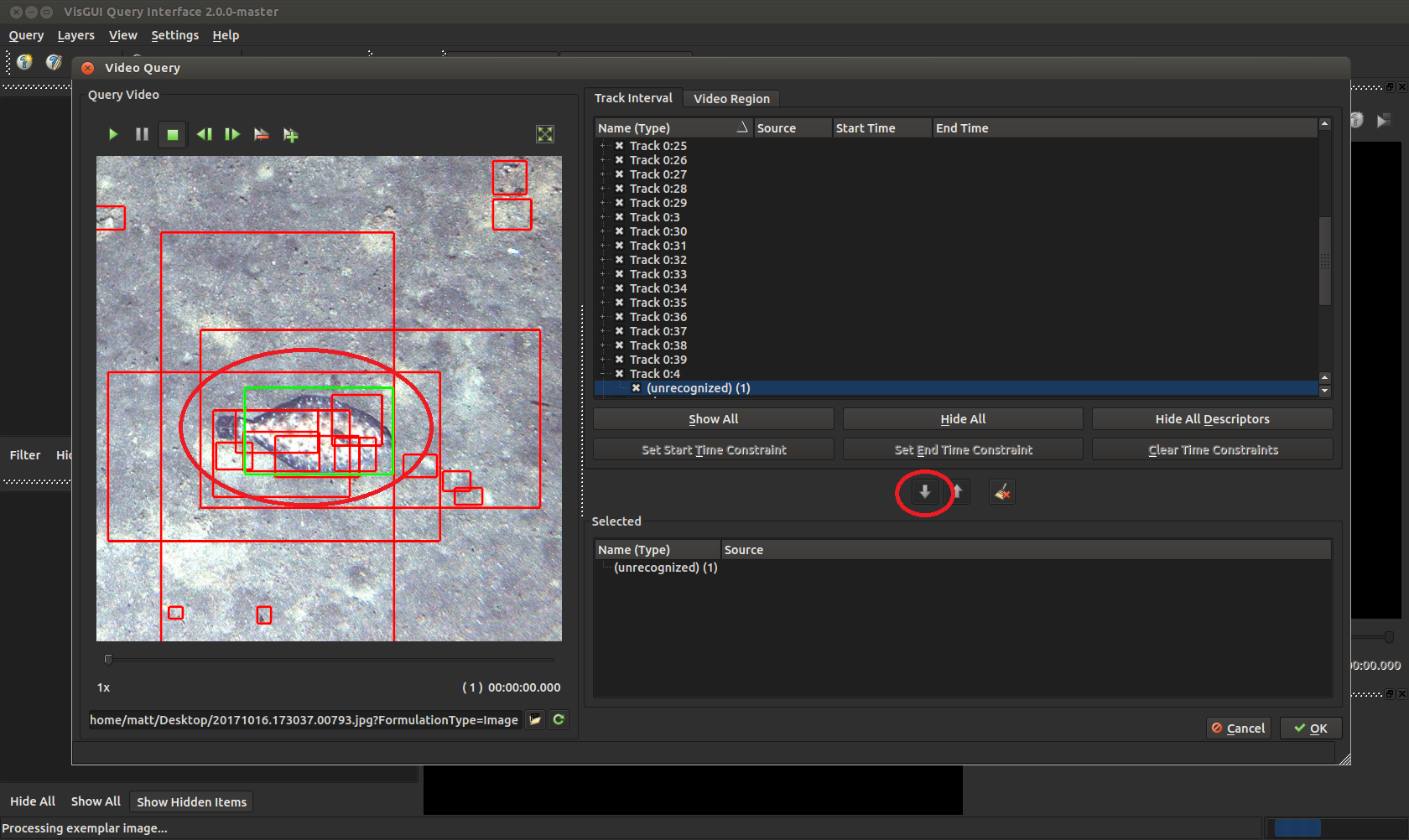
Press the down arrow to highlight it (the selected box should light up in green). Press okay on the bottom right, then okay again on the image query panel to perform the query.
Optionally, the below four instructions are an aside on how to generate an image chip just showing your object of interest. They can be ignored if you don’t need them. If the default object proposal techniques are not generating boxes around your object for a full frame, you can use this method then select the full frame descriptor around the object. In the below we used the free GIMP painter tool to crop out a chip. Install this using ‘sudo apt-get install gimp’, on Ubuntu, https://www.gimp.org/ on Windows).
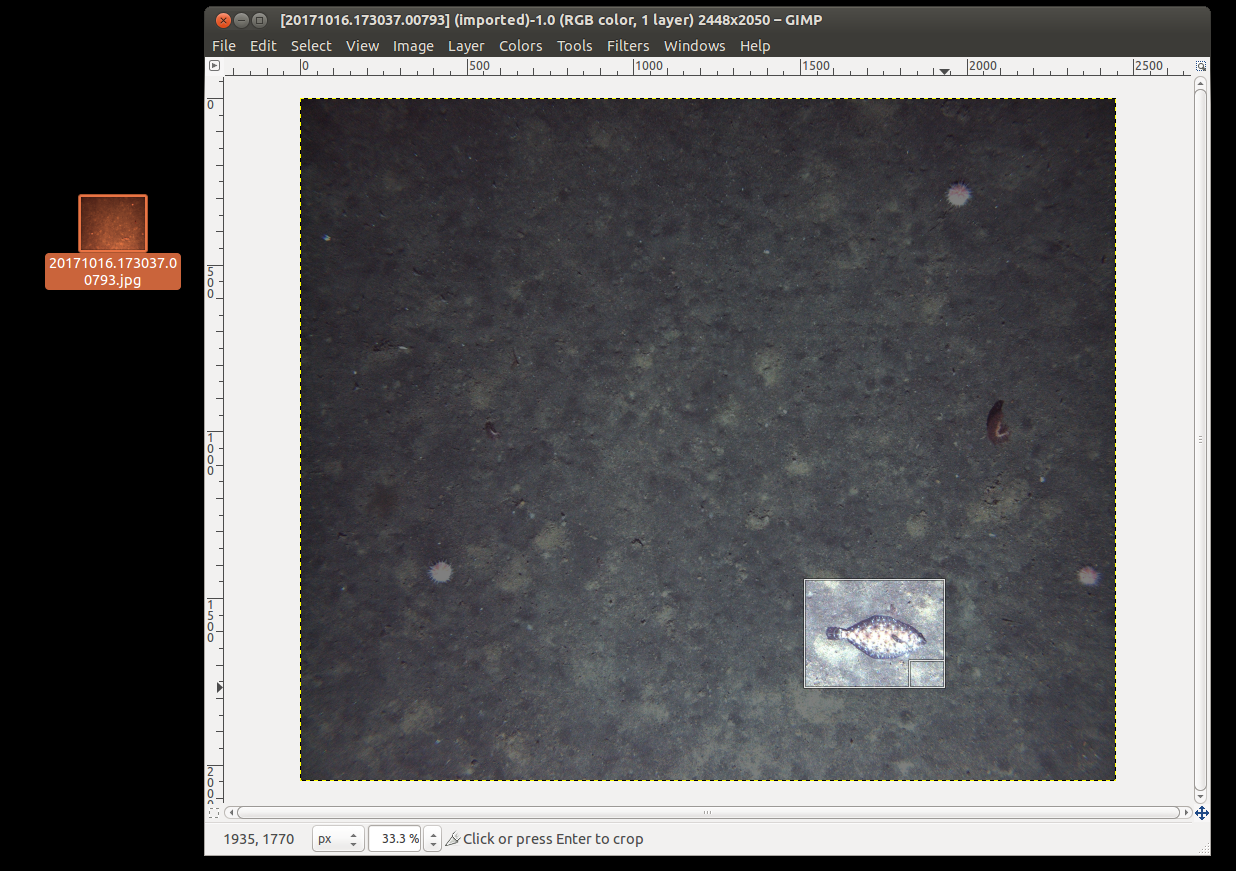
Right click on your image in your file browser, select ‘Edit with Gimp’, press Ctrl-C to open the above dialogue, highlight the region of interest, press enter to crop.
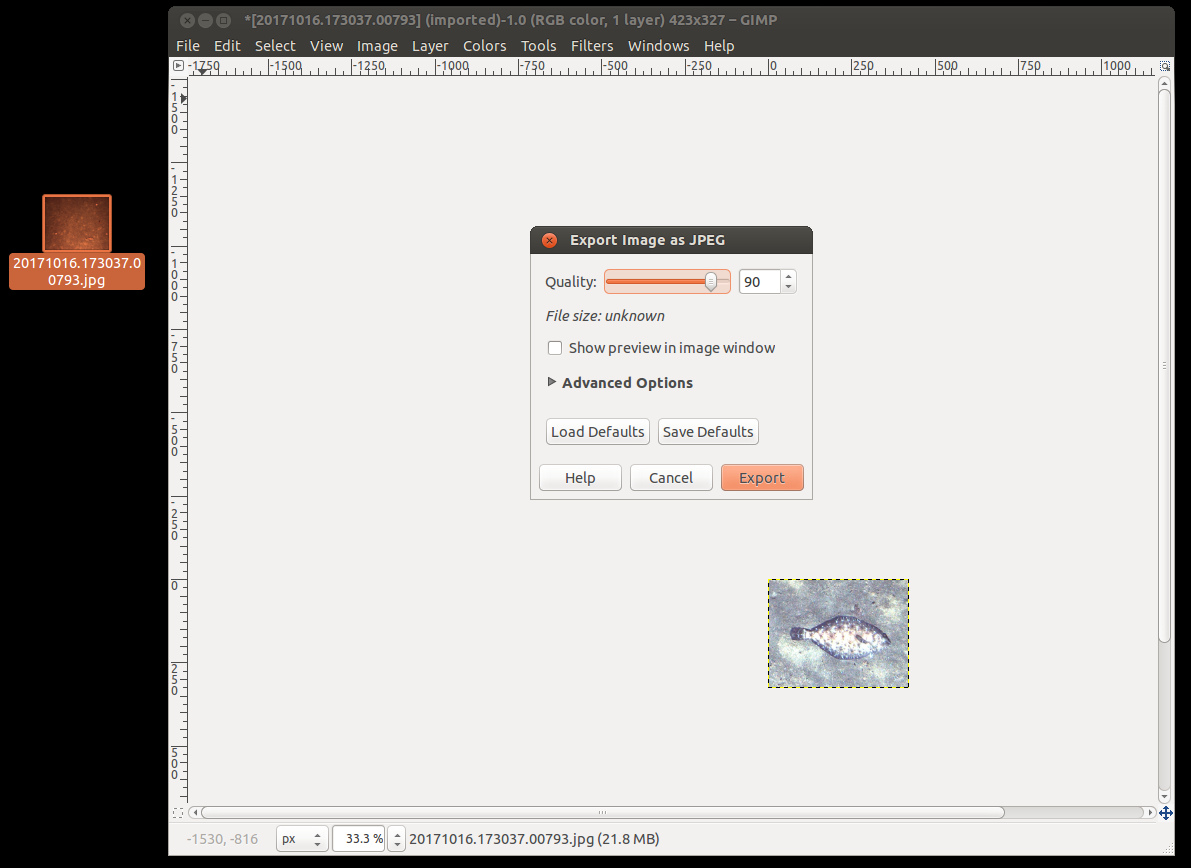
Save out your crop to wherever you want, preferably somewhere near your project folder.
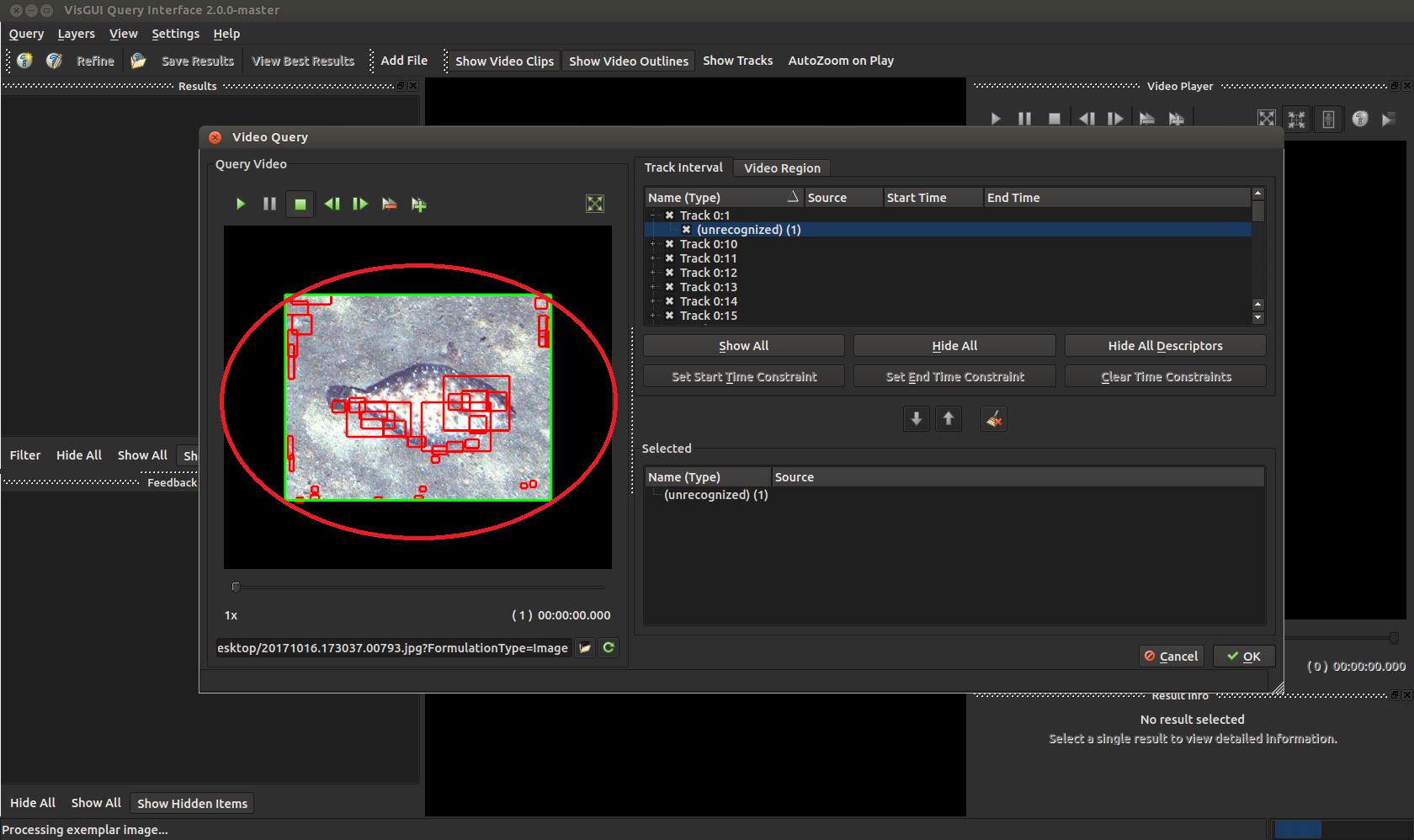
Now you can put this chip through the image query system, instead of the full frame one.
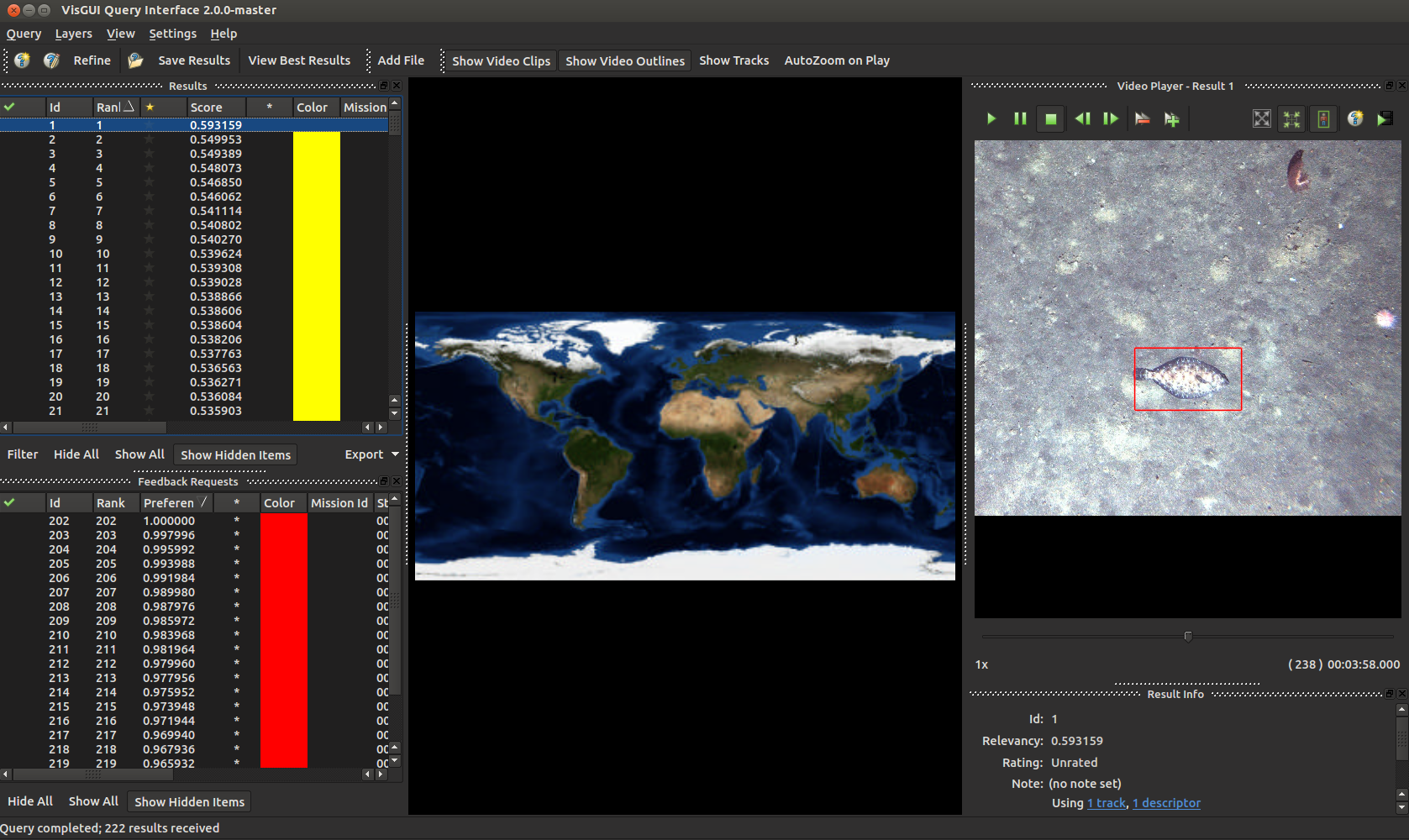
Regardless which method you use, when you get new results they should look like this. You can select them on the left and see the entries on the right. Your GUI may not look like this depending on which windows you have turned on, but different display windows can be enabled or disabled in Settings->Tool Views and dragged around the screen.
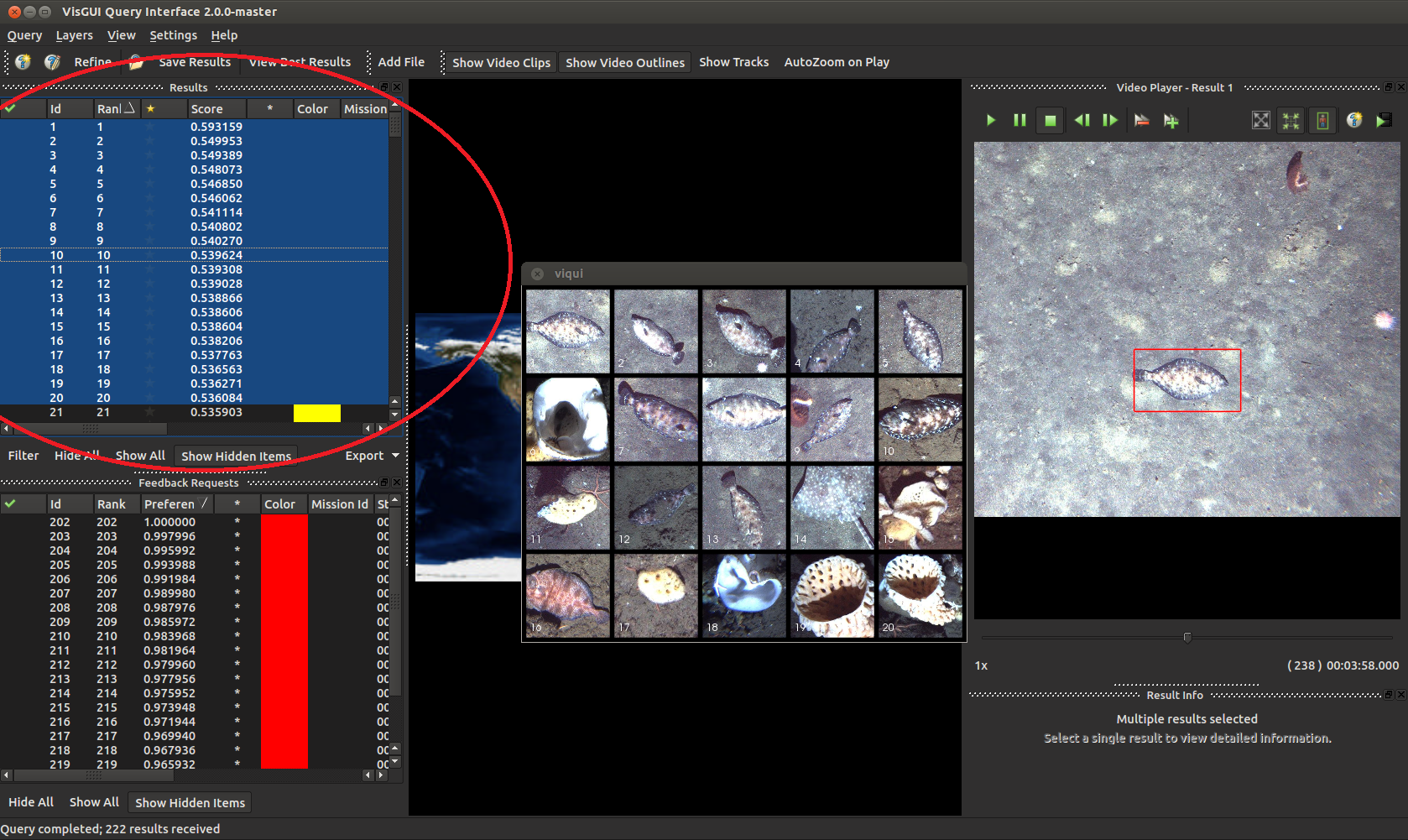
Results can be exported by highlighting entries and selecting Query -> Export Results in the default VIAME csv format and others. You can show multiple entries at the same time by highlighting them all (hold shift, press the first entry then the last), right-clicking on them, and going to ‘Show Selected Entries’.
Train a IQR Model
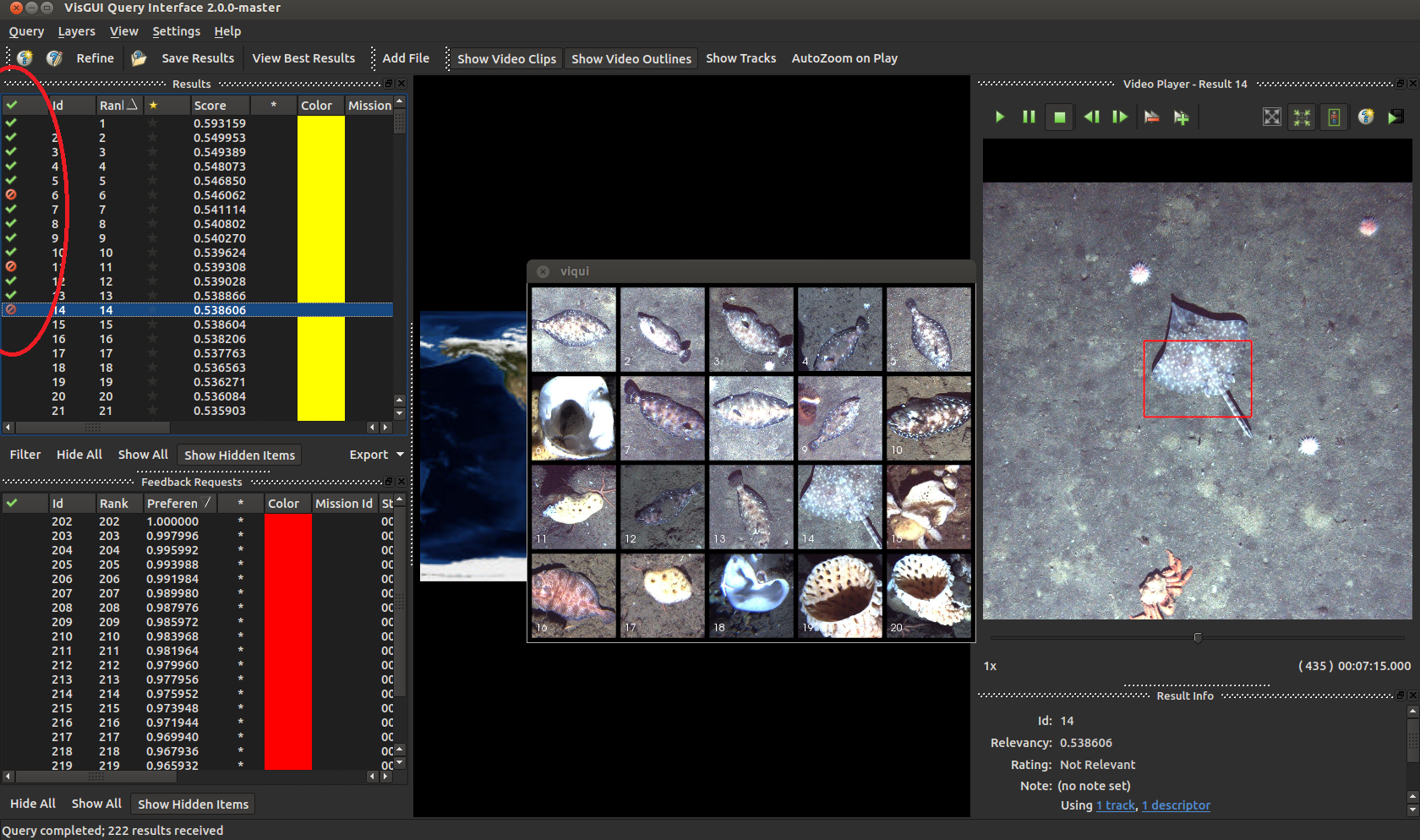
When you perform an initial query, you can annotate results as to their correct-ness in order to generate a model for said query concept. This can be accomplished via a few key-presses. Either right click on an individual result and select the appropriate option, or highlight an entry and press ‘+’ or ‘-’ on your keyboard for faster annotation.
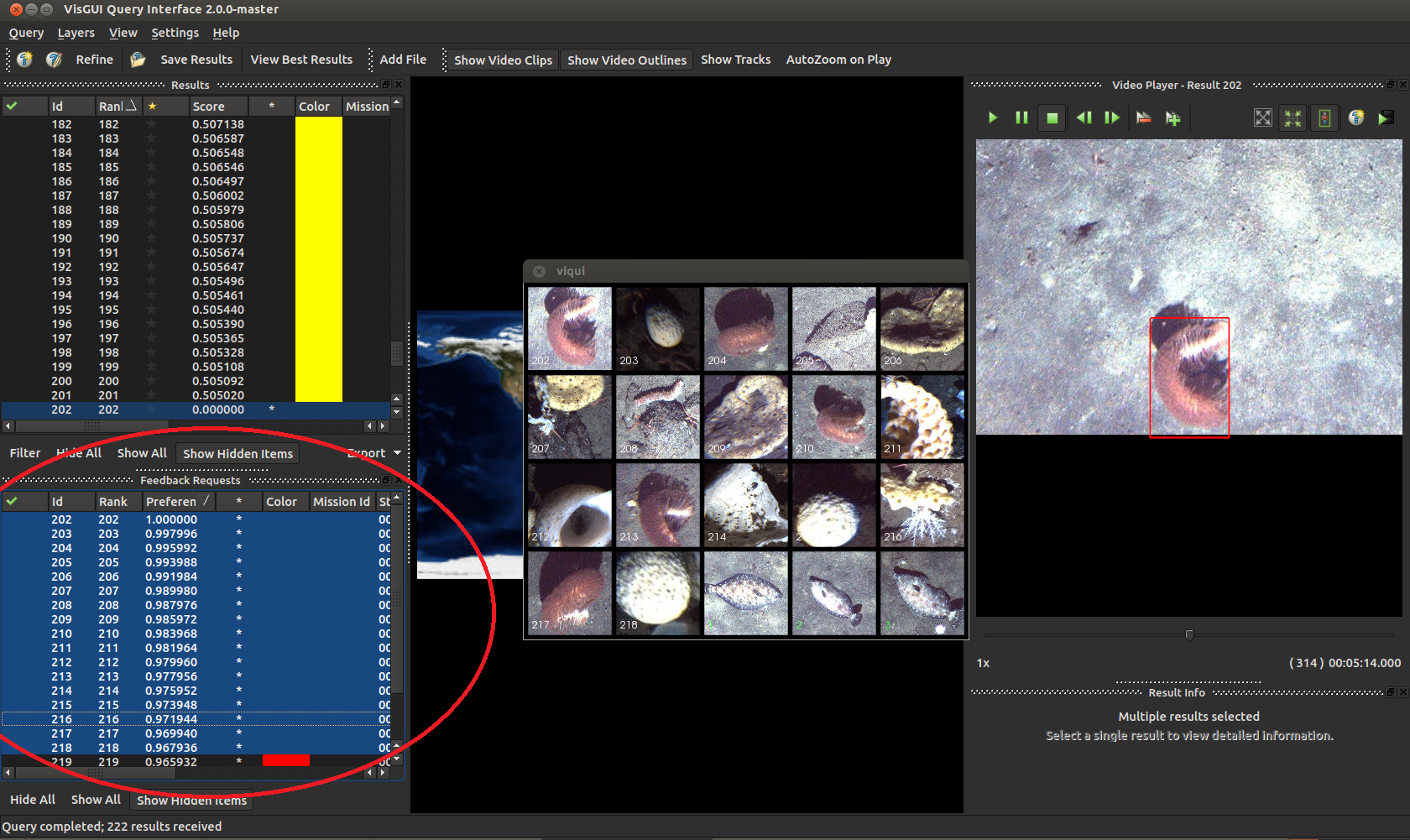
You might want to annotate entries from both the top results list, and the requested feedback list (bottom left in the above). This can improve the performance of your model significantly. After annotating your entries press ‘Refine’ on the top left.
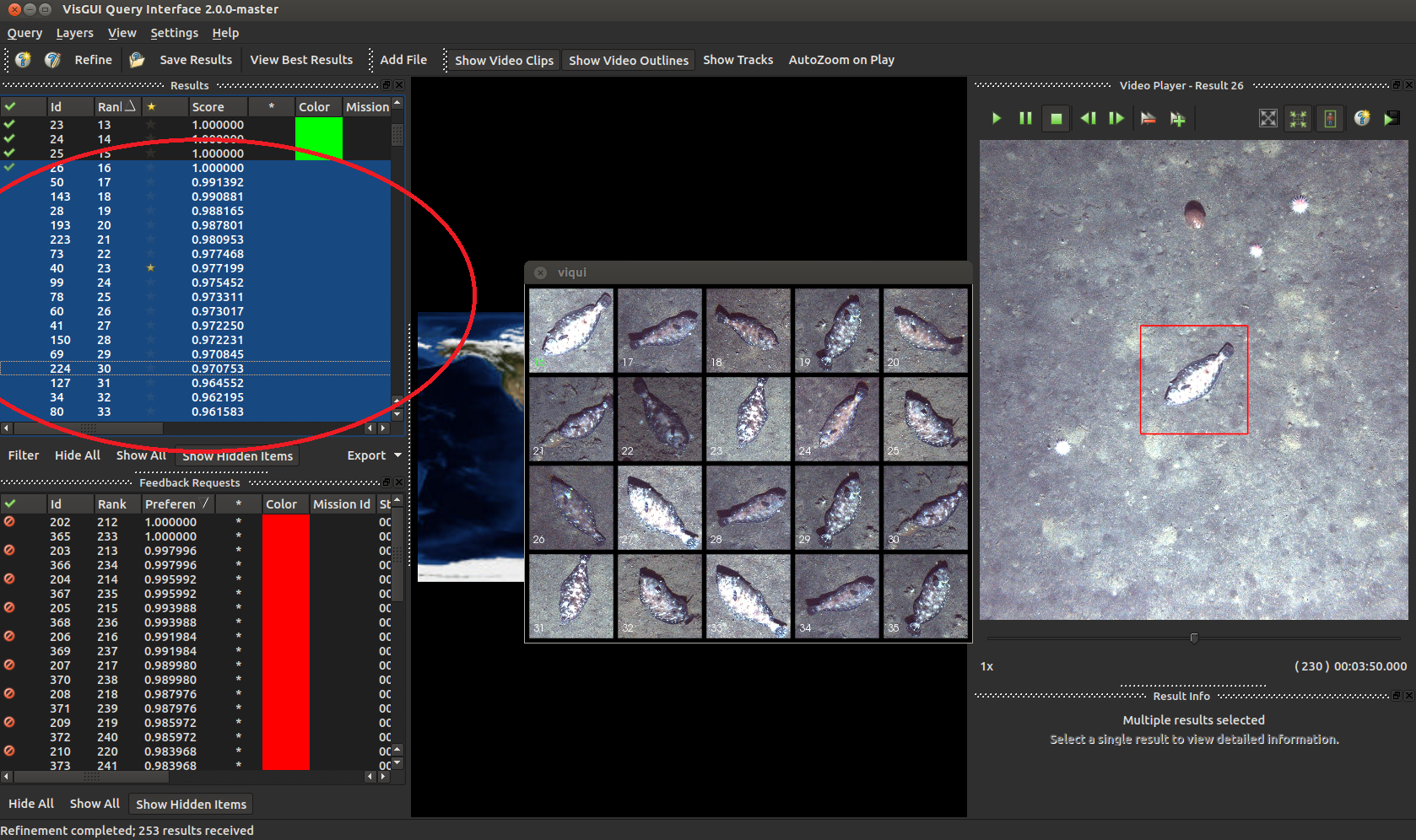
There we go, that’s a little better isn’t it.
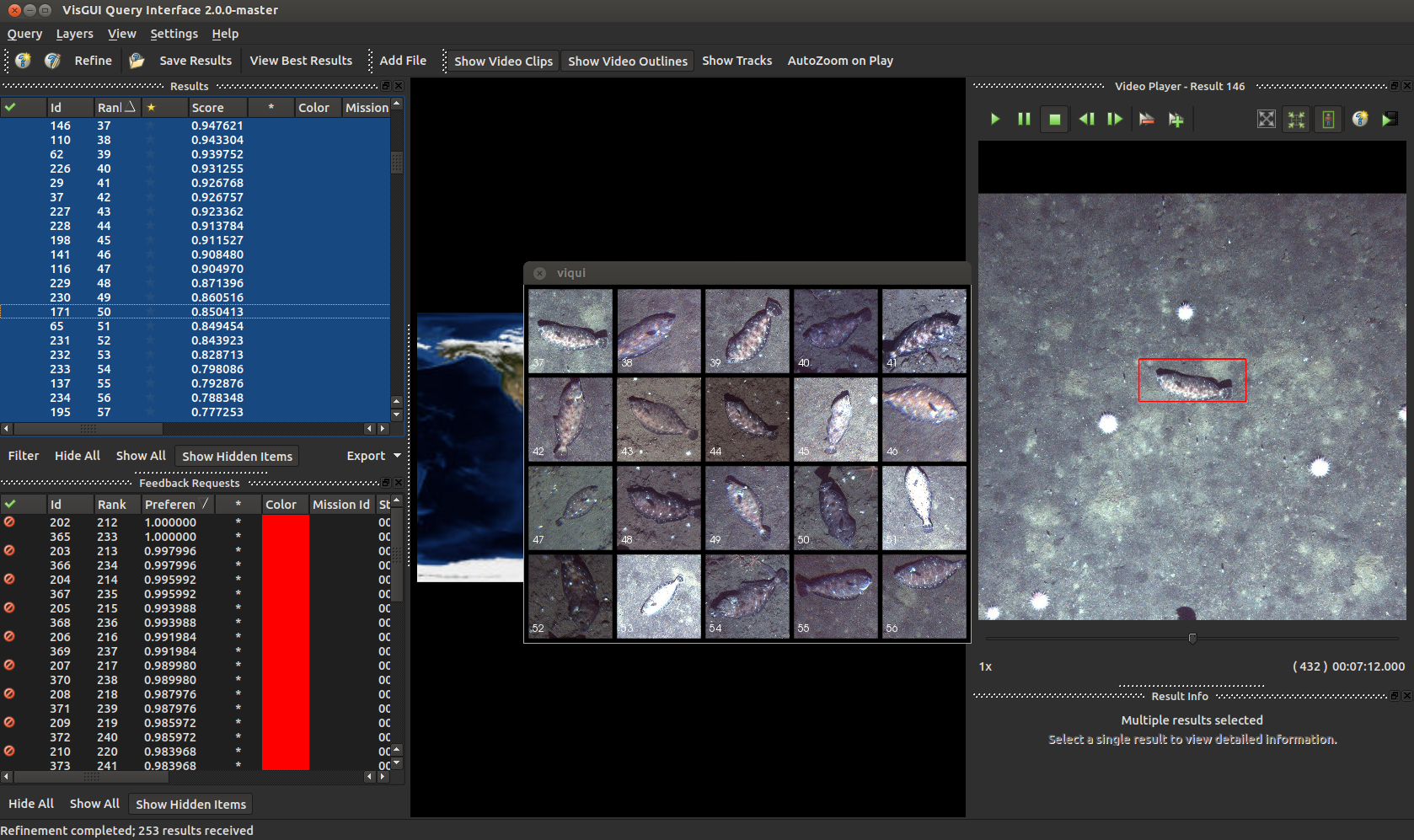
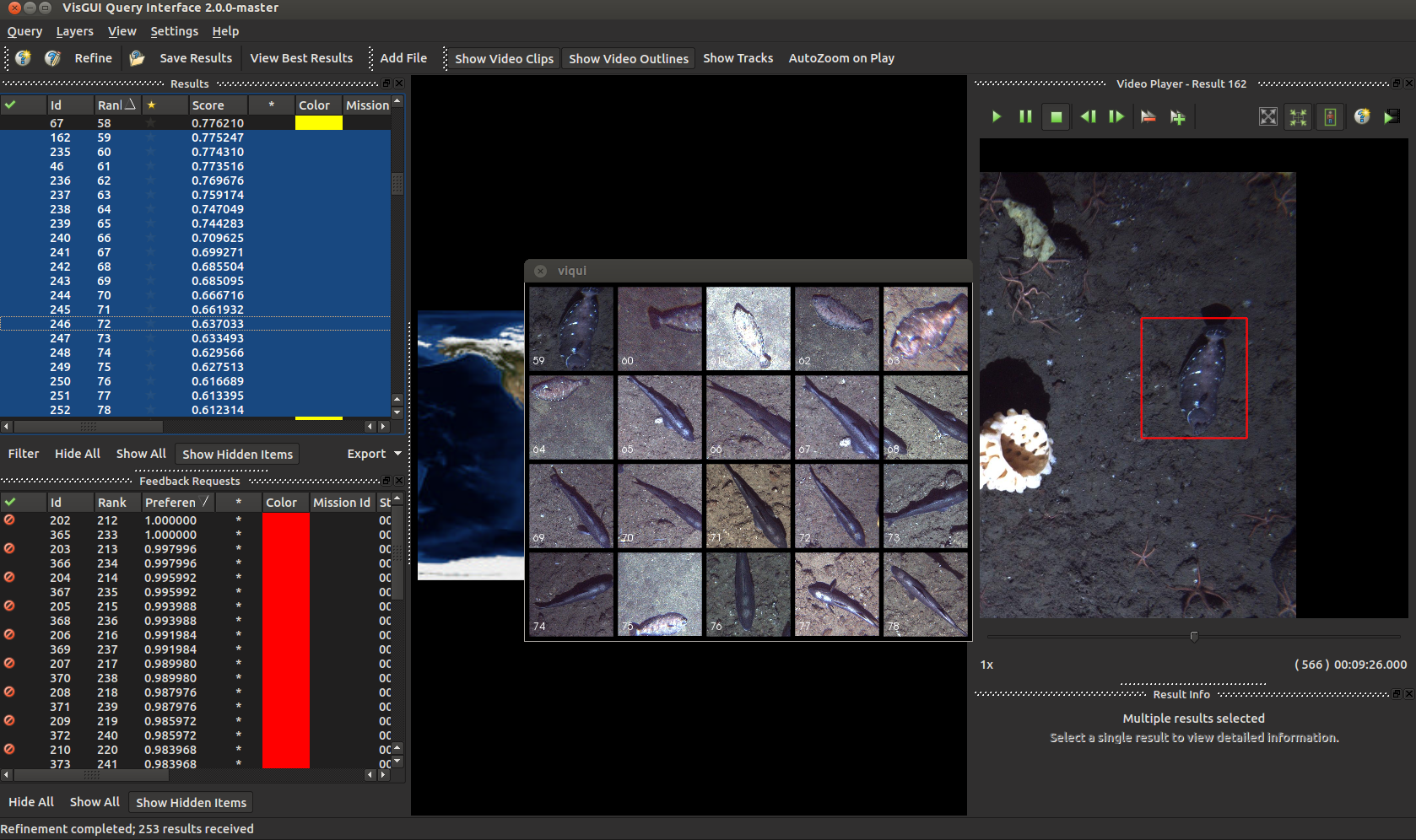
Okay these guys are a little weird, but nothing another round of annotations can’t fix.
After you’re happy with your models, you should export them (Query -> Export IQR Model) to a directory called ‘category_models’ in your project folder for re-use on both new and larger datasets.
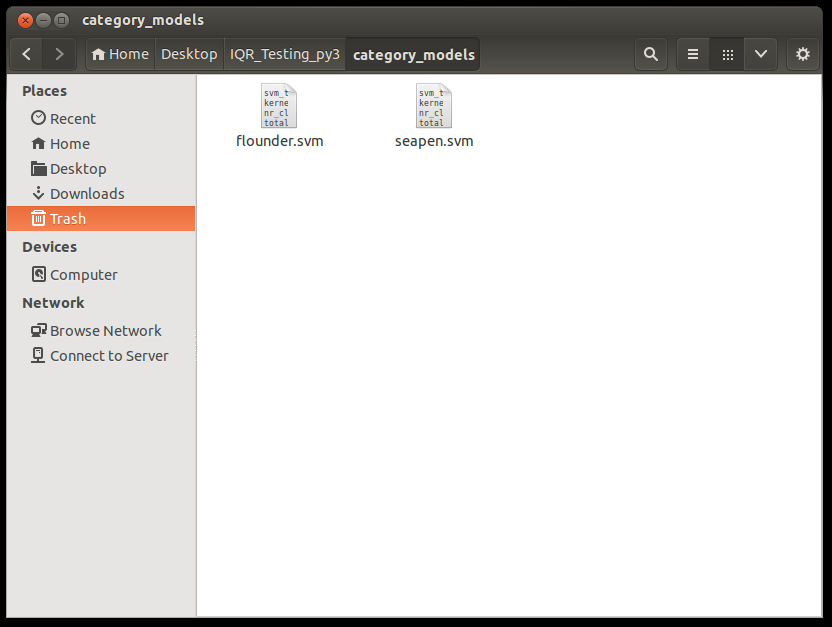
The category models directory should contain only .svm model files.
Re-Run Models on Additional Data
If you have one or more .svm model files in your category_models folder, you can run the ‘bash process_list_using_models.sh’ script in your project folder. This can either be on the same data you just processed, or new data. By default, this script consumes the supplied ingest_list.txt and produces a detection file called ‘svm_detections.csv’ containing a probability for each input model in the category_models directory per detection. Alternatively this pipeline, this can be run from within the annotation GUI.
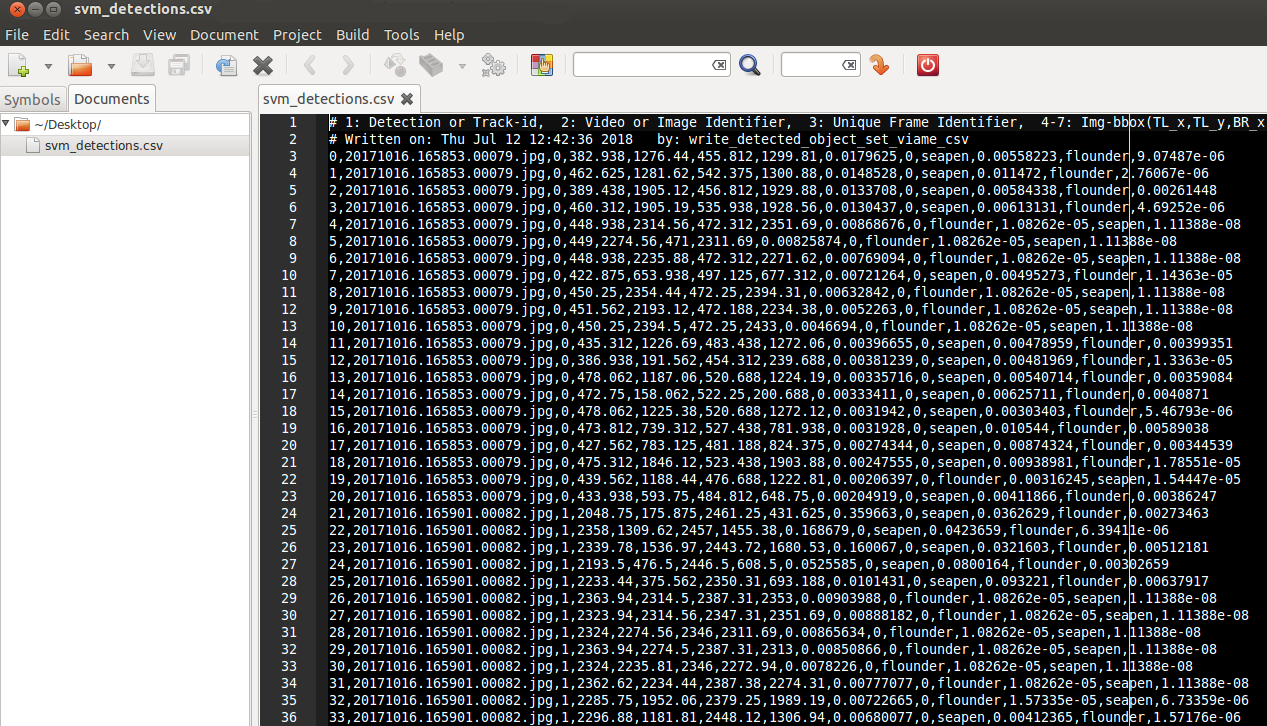
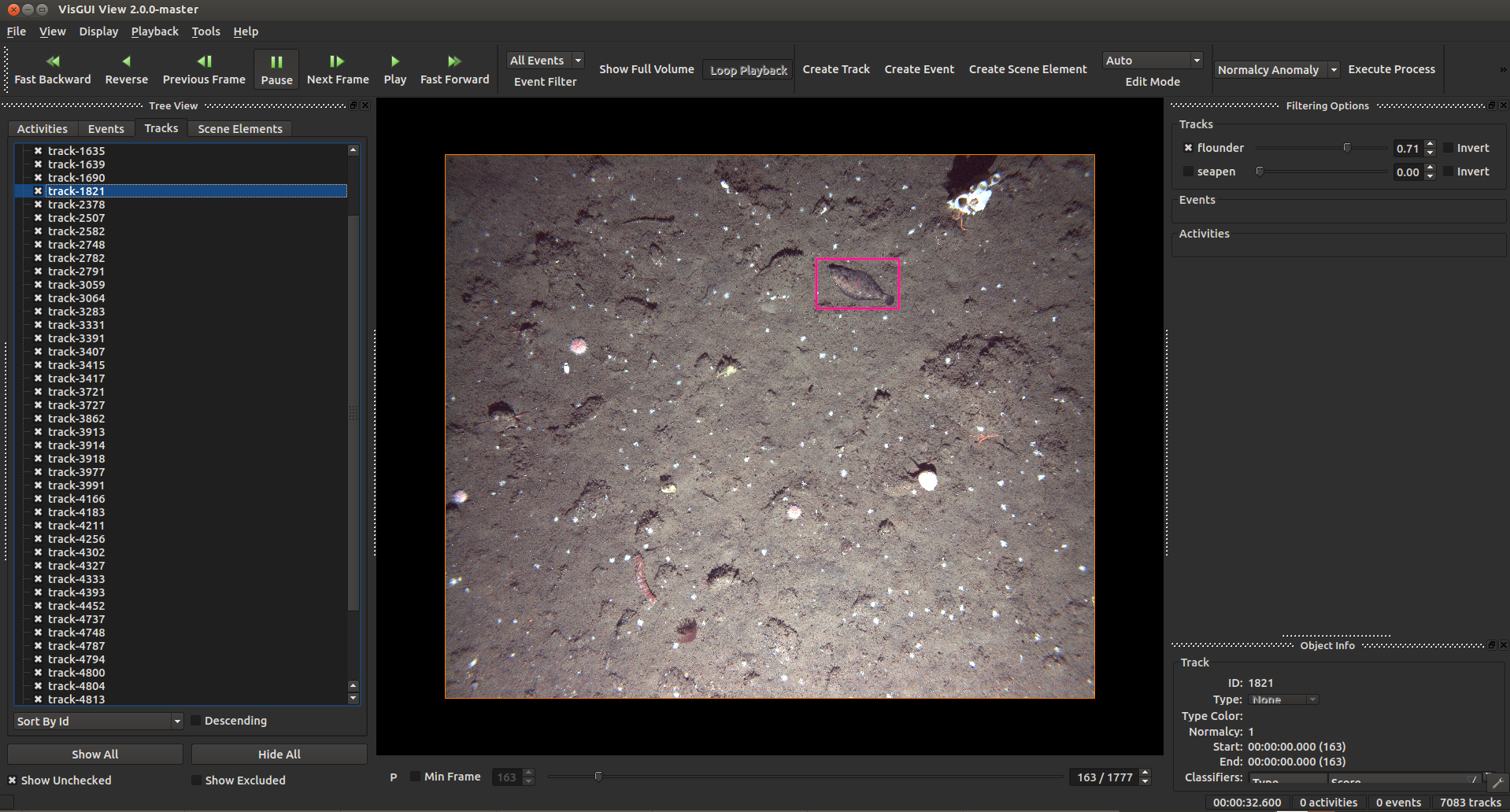
The resultant detection .csv file is in the same common format that most other examples in VIAME take. You can load this detection file up in the annotation GUI and select a detection threshold for your newly-trained detector, see here. You can use these models on any imagery, it doesn’t need to be the same imagery you trained it on.
Correct Results and Train a Better Model
If you have a detection .csv file for corresponding imagery, and want to train a better (deep) model for the data, you can first correct any mistakes (either mis-classifications, grossly incorrect boxes, or missed detections) in the annotation GUI. To do this, set a detection threshold you want to annotate at, do not change it, and make the boxes as perfect as possible at this threshold. Over-ride any incorrectly computed classification types, and create new detections for objects which were missed by the initial model. Export a new detection csv (File->Export Tracks) after correcting as many boxes as you can. Lastly, feed this into the ground-up detector training example. Make sure to set whatever threshold you set for annotation in the [train].sh script you use for new model training.
Text-Prompted Detection and Tracking
Text-prompted detection provides an alternative approach to rapid model generation that uses open-vocabulary text prompts instead of image or video exemplars. Rather than ingesting data into a search database and performing iterative query refinement, you can simply describe the objects you are looking for using natural language (e.g., “fish”, “sea turtle”, “bird”). Text queries are currently performed using Meta’s SAM3 model, which can be installed from the VIAME Add-Ons wiki. The model combines Grounding DINO for text-prompted detection with a SAM-based segmentation and tracking architecture, producing polygon masks and multi-frame tracks.
Running Pipelines from the Command Line
Text query pipelines can be run from the command line using the VIAME kwiver runner.
First source your VIAME installation setup script, then run a pipeline with your desired
text query. For example, to run the tracker on a list of images:
source /path/to/VIAME/install/setup_viame.sh
kwiver runner configs/add-ons/sam3/tracker_sam3_animals.pipe \
  -s downsampler:input_file_name=input_list.txt \
  -s tracker:refiner:sam3:text_query="fish"
For video files, replace the input file list with the video path as appropriate for the
pipeline being used. The text_query parameter accepts a comma-separated list of object
categories to detect (e.g., “fish, crab, starfish”).
Running Pipelines from the DIVE Interface
These pipelines are also accessible from the DIVE web annotation interface. They appear in the pipeline runner menu under the SAM3 category once the add-on is installed. Text query pipelines will prompt for a text query string when launched. Additionally, the interactive segmentation service can be started with the SAM3 configuration to enable point-click and text-based segmentation directly within the annotation view.
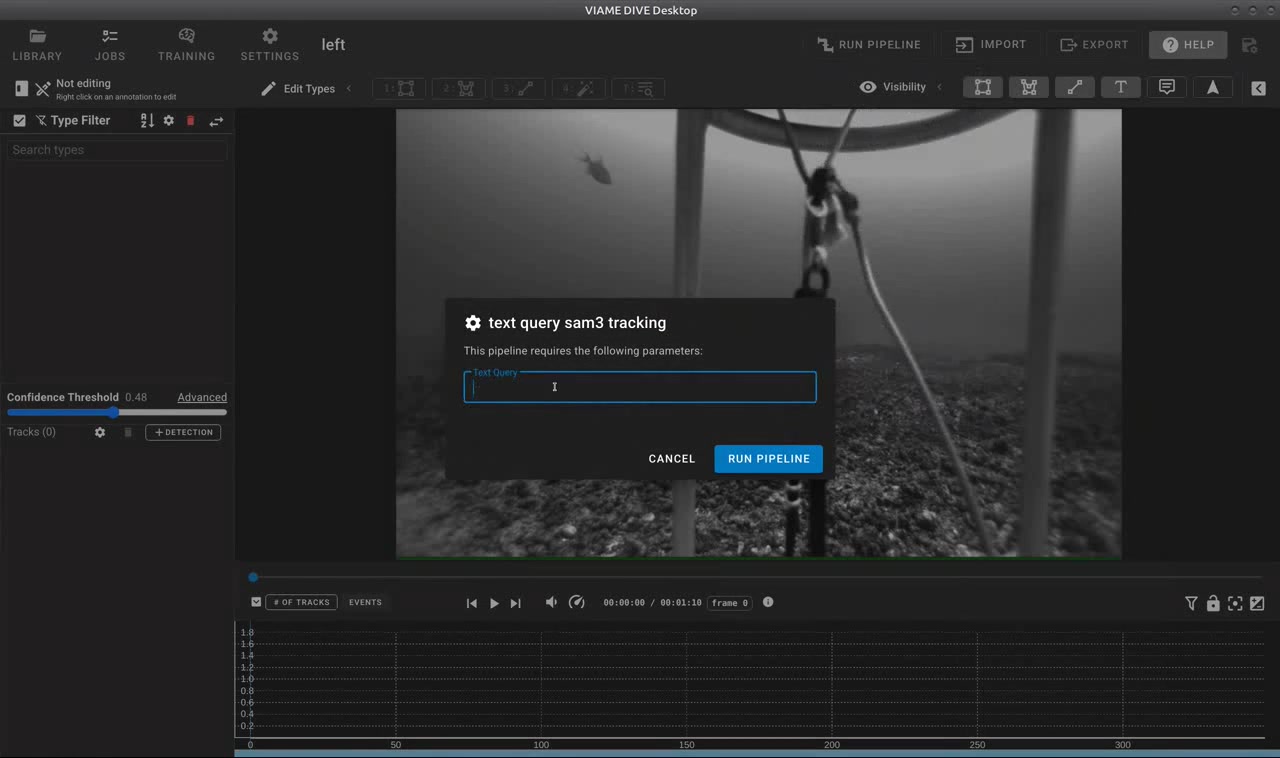
The SAM3 text query dialog in DIVE prompts for a text description of objects to detect and track.
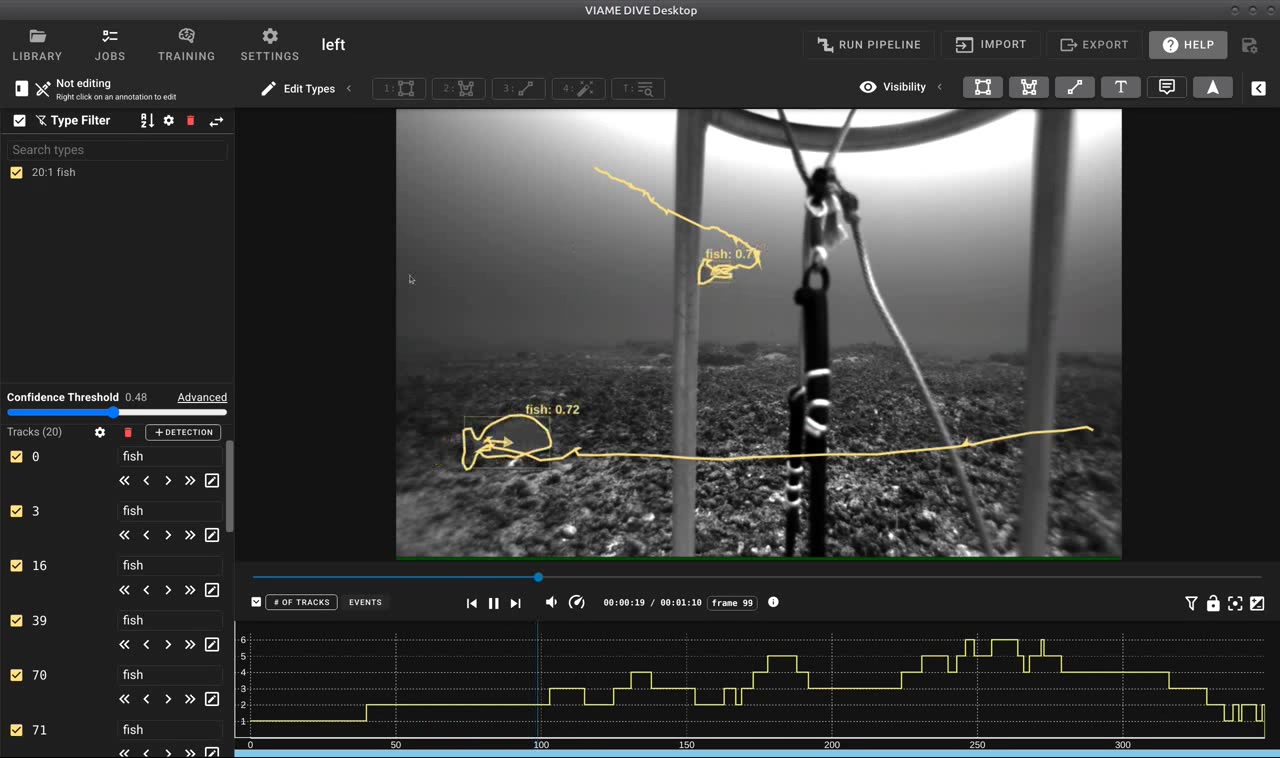
Results of a SAM3 text query showing automatically detected and tracked fish with segmentation outlines and tracks.
Available Pipelines
All of the pipelines below require the SAM3 add-on to be installed. They also require a CUDA-capable GPU.
Detection and Tracking Pipelines
detector_sam3_animals.pipe – Per-frame open-vocabulary detector. Uses Grounding DINO with SAM3 segmentation to detect objects matching a text query in each frame independently. Produces per-frame detections with polygon masks. Suitable for image sets or videos where frame-to-frame tracking is not needed.
tracker_sam3_animals.pipe – Open-vocabulary tracker with memory-attention. Detects objects matching a text query on the first frame (and periodically re-detects thereafter), then propagates detections across subsequent frames using memory-attention tracking. Produces multi-frame tracks with polygon masks.
Text Query Utility Pipelines
These pipelines are designed to be used as utility steps applied to existing detections or launched from within the DIVE annotation interface.
utility_text_query_sam3_tracking.pipe – Refines or creates tracks using a text query with cross-frame tracking. Applies the memory-attention tracker to propagate detections across frames.
utility_text_query_sam3_no_tracking.pipe – Per-frame text query detection using Grounding DINO and SAM3 segmentation. Each frame is processed independently with no cross-frame tracking. Suitable for image sets or cases where frame-to-frame correspondence is not needed.
utility_text_query_sam3_gridded.pipe – Text query detection with windowed/gridded processing for large images. Splits large images into overlapping chips to improve detection of small objects that might be missed at full resolution. Each frame is processed independently with no cross-frame tracking.
Segmentation Utility Pipelines
utility_add_segmentations_sam3.pipe – Adds automatically generated segmentation masks to existing detections. Replaces any existing masks with new masks. Uses windowed processing for large images.
utility_add_segmentations_sam3_no_replace.pipe – Adds segmentation masks only to detections that do not already have masks. Preserves any existing masks.
utility_track_selections_sam3.pipe – Tracks user-selected detections forward in time using the video tracker and generates segmentation masks for each tracked frame. Useful for propagating a single annotation forward through a video sequence.
Interactive Segmentation
interactive_segmenter_sam3.conf – Configuration for the interactive segmentation service in DIVE. Enables both point-click and text-based segmentation within the annotation view.
Training
train_detector_sam3.conf – Configuration for fine-tuning on custom data using detection-level annotations with optional polygon masks. Uses adaptive chipping with 1024px input resolution.
Tuning Algorithms (Advanced)
Coming Soon….
Rapid Model Generation
Rapid model generation can be performed using the same method as image and video search (above), just saving out the resultant trained detection models after performing iterative query refinement. These models can then be used in detection pipelines, or further refined or used in future video searches.